

BeamDome FX
BeamDome FX: 200W LED RGB/WW Multibeam Effect
151.746UK
About this manual
This manual provides essential information for installing, operating, and maintaining your product. Please read and keep this manual to ensure the best performance from your purchase and to avoid damage resulting from improper use.
Introduction
Thank you for choosing the BeamDome FX moving effects light unit. Please read this manual prior to use to avoid damage to the item. This versatile moving effects light unit is packed with features in a compact, manageable enclosure and is suitable for a wide array of applications ranging from bars and nightclub installations to mobile DJ setups.
Safety information
This section contains important safety instructions that must be followed to reduce the risk of injury, damage to the product, or damage to other equipment. Read all safety information before installing, operating, or servicing the product. Failure to follow these instructions may result in personal injury, property damage, or impaired product performance.
Warning
- To prevent the risk of fire or electric shock, do not expose any of the components to rain or moisture.
- If liquids are spilled on any component, stop using immediately, allow the unit to dry out and have checked by qualified personnel before further use.
- Avoid impact or heavy vibration to any of the components.
- No user serviceable parts inside.
- Refer servicing to qualified service personnel.
Placement
- Keep the unit out of direct sunlight and away from heat sources.
- Keep the unit away from moisture or dusty environments.
- Allow adequate space for cooling around the unit.
- Do not place heavy objects on top of the unit.
Cleaning
- Use a soft cloth with a neutral detergent to clean the housing as required.
- A soft brush can be used to clear debris from the unit without damaging it.
- Do not use solvents for cleaning the unit.
Controls and features
Front Panel
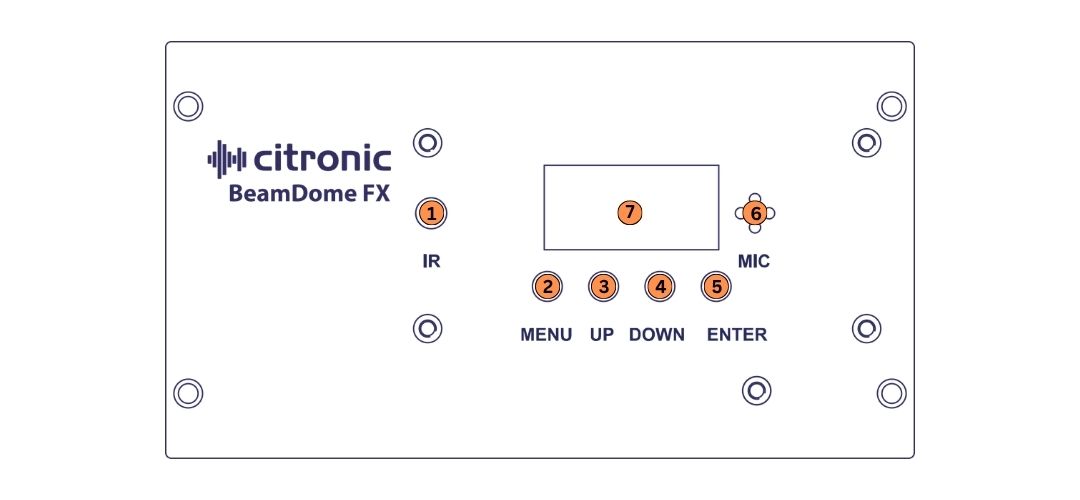
1. IR Receiver
2. Menu
3. Up
4. Down
5. Enter
6. Internal Microphone
7. Display
Back Panel
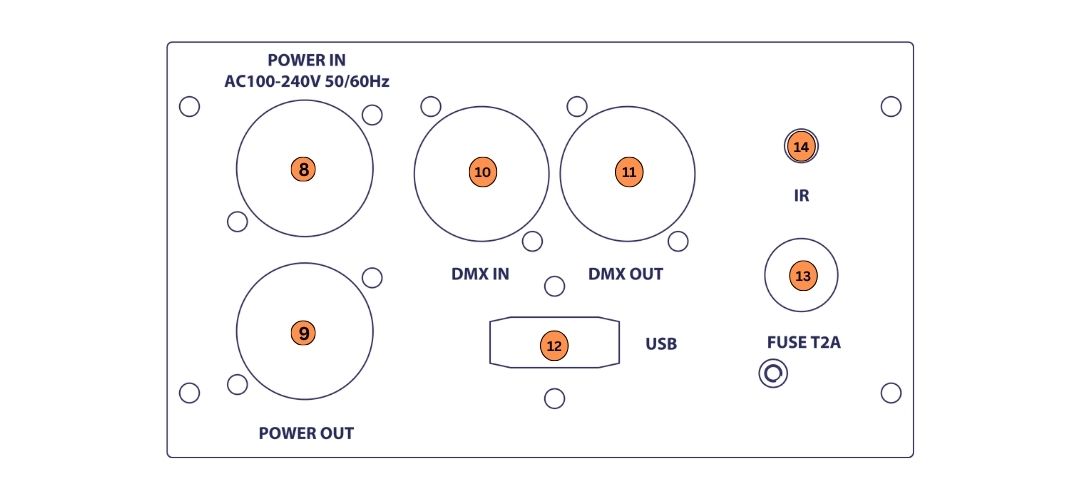
8. Locking Power Inlet
9. Locking Power Outlet
10. DMX In
11. DMX Out
12. USB (WDMX/CRMX use only)
13. Fuse T2A
14. IR Receiver
Power requirements
- Power supply: 100–240 Vac, 50/60 Hz.
- Use only the supplied or an approved locking mains power lead.
Installation and setup
1. Unpack the unit and verify all supplied components are present.
2. Place the unit on a stable, level surface or attach to a suitable lighting clamp.
3. Connect all required cables as described below.
4. Apply power (if applicable).
Operation
Basic Menu Operation
Press the Menu button to access the settings menu.
Use the Up and Down buttons to scroll through the available menu options.
Press the Enter button to select or confirm the displayed setting.
| Menu | Options and Settings | Description |
|---|---|---|
| rot | Auto (S0–S100) | Auto Rotation |
| "" | LEFt (S0–S100) | Left Rotation |
| "" | riGt (S0–S100) | Right Rotation |
| "" | StoP | Stop Rotation |
| Prog | FAdE (001–100) | Fade Mode |
| "" | JuhP (001–100) | Jump Mode |
| Snd | Sound (007–100) | Sound Sensitivity |
| CoLo | C1–C15 | Colour Macro |
| MAnU | R000–R255 | Red Intensity |
| "" | G000–G255 | Green Intensity |
| "" | B000–B255 | Blue Intensity |
| "" | U000–U255 | Warm White Intensity |
| dMX | d001–d512 | DMX Address |
| "" | 1Ch / 3Ch / 4Ch / 10Ch | DMX Channel Mode |
| SLA | SLAU | Slave Mode |
| SEt | ir ON/OFF | IR Remote |
| "" | rSEt No / Yes | Factory Reset |
Show Mode
1. Press the Menu button until Prog is displayed, then press Enter. Select Auto using the Up and Down buttons, then press Enter.
2. Press the Menu button again to enter the setup menu. Select either FAdE (Fade mode) or JuhP (Jump mode) using the Up and Down buttons, then press Enter to confirm.
3. Use the Up and Down buttons to select a program from 1–100, then press Enter to confirm.
4. The unit will now operate in the selected pre-programmed show mode.
Colour Mode
1. Press the Menu button until CoLo is displayed, then press Enter. Select the desired preset colour (C1–C15) using the Up and Down buttons, then press Enter to confirm.
2. The unit will now operate using the selected preset colour.
Manual Colour Mode
1. Press the Menu button until MAnU is displayed, then press Enter.
2. The display will show R.000–R.255. Use the Up and Down buttons to adjust the intensity of the Red LEDs, then press Enter to move to the next colour.
3. The display will show G.000–G.255. Use the Up and Down buttons to adjust the intensity of the Green LEDs, then press Enter to move to the next colour.
4. The display will show B.000–B.255. Use the Up and Down buttons to adjust the intensity of the Blue LEDs, then press Enter to move to the next colour.
5. The display will show U.000–U.255. Use the Up and Down buttons to adjust the intensity of the Warm White LEDs, then press Enter to confirm.
Rotation
1. Press the Menu button until rot is displayed, then press Enter. Select the desired rotation direction using the Up and Down buttons, then press Enter to confirm.
2. Use the Up and Down buttons to adjust the rotation speed from 0–100.
3. The unit will now operate using the selected rotation settings.
Sound Mode
1. Press the Menu button until Snd is displayed, then press Enter. Select Sound using the Up and Down buttons, then press Enter.
2. Use the Up and Down buttons to set the sound sensitivity from 7–100, then press Enter to confirm.
3. The unit will now operate in Sound Active mode.
Slave Mode
1. Connect a DMX cable from the master unit or the previous slave unit in the chain to the DMX input of this unit.
2. Press the Menu button until SLA is displayed, then press Enter. Select SLAU using the Up and Down buttons, then press Enter to confirm.
3. The unit will now operate as a slave, copying the settings of the master unit.
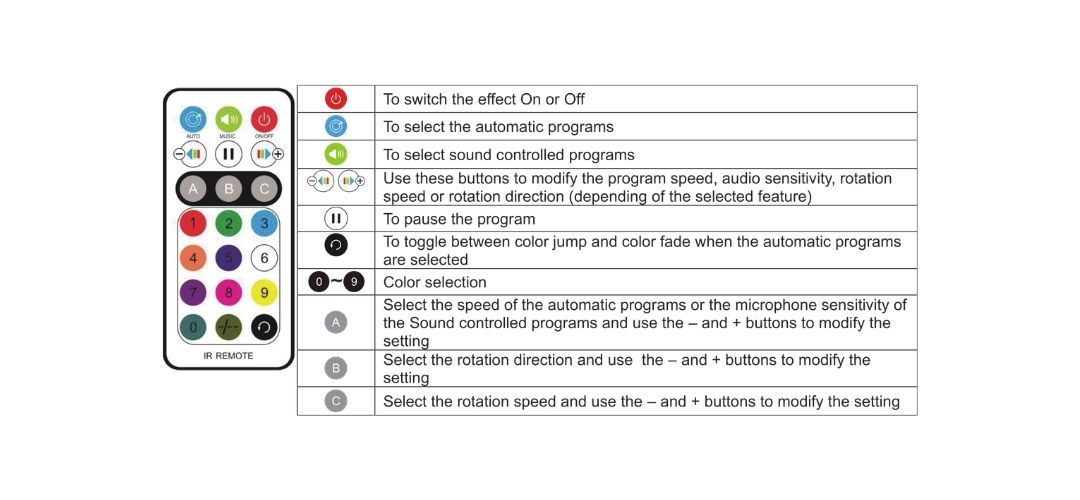
IR Remote Control
1. Press the Menu button until SEt is displayed, then press Enter.
2. Use the Up and Down buttons to browse the system menu until ir is displayed, then press Enter.
3. Use the Up and Down buttons to select the desired setting: - ON – IR remote receiver enabled. - OFF – IR remote receiver disabled.
4. Press Enter to confirm.
5. When the IR receiver is enabled, the unit can be operated using the IR remote control.
DMX Operation
DMX Address and Channel Mode Setting
1. Connect the DMX input of the unit to the DMX output of the previous fixture in the chain or directly to the DMX output of your DMX controller.
2. Press the Menu button until dMX is displayed, then press Enter.
3. The current DMX address will be displayed. Press Enter again to access the channel mode setting.
4. Use the Up and Down buttons to select the desired DMX channel mode (1Ch, 3Ch, 4Ch or 10Ch), then press Enter to confirm.
5. Use the Up and Down buttons to set the desired DMX address (d001–d512), then press Enter to confirm.
DMX Channel Chart
10 CH Mode
| 10 CH | Setting | DMX Value | Function |
|---|---|---|---|
| CH 1 | Dimmer | 000–255 | LED Dimmer |
| CH 2 | Red | 000–255 | Manual Colour |
| CH 3 | Green | 000–255 | Manual Colour |
| CH 4 | Blue | 000–255 | Manual Colour |
| CH 5 | Warm White | 000–255 | Manual Colour |
| CH 6 | No Strobe | 000–005 | Strobe Off |
| "" | Random Strobe | 006–127 | Random Strobe |
| "" | Strobe | 128–250 | Strobe Speed (Slow to Fast) |
| "" | Sound Strobe | 251–255 | Sound Activated Strobe |
| CH 7 | No Rotation | 000 | Static |
| "" | Clockwise | 001–127 | Rotation Speed (Slow to Fast) |
| "" | No Rotation | 128 | Static |
| "" | Anti-clockwise | 129–255 | Rotation Speed (Slow to Fast) |
| CH 8 | Auto Mode Off | 000–005 | Manual Colour (CH 2–5) |
| "" | Program 01–15 | 006–230 | Auto Program |
| "" | Sound Mode | 231–248 | Sound Activated |
| "" | Rotation Sound Mode | 249–255 | Sound Activated with Rotation |
| CH 9 | Auto Program Speed | 000–255 | Slow to Fast |
| CH 10 | Sound Sensitivity | 000–255 | Low to High |
4 CH Mode
| 4 CH | Setting | DMX Value | Function |
|---|---|---|---|
| CH 1 | Blackout | 000–005 | Static Colour |
| "" | Red | 006–033 | Static Colour |
| "" | Green | 034–061 | Static Colour |
| "" | Blue | 062–089 | Static Colour |
| "" | White | 090–117 | Static Colour |
| "" | Program 1 | 118–145 | Auto Show |
| "" | Program 2 | 146–173 | Auto Show |
| "" | Program 3 | 174–201 | Auto Show |
| "" | Program 4 | 202–229 | Auto Show |
| "" | Program 5 | 230–255 | Auto Show |
| CH 2 | Program Speed | 000–250 | Slow to Fast |
| "" | Sound Program | 251–255 | Sound Activated |
| CH 3 | No Rotation | 000 | Static |
| "" | Clockwise | 001–127 | Rotation Speed (Slow to Fast) |
| "" | No Rotation | 128 | Static |
| "" | Anti-clockwise | 129–255 | Rotation Speed (Slow to Fast) |
| CH 4 | No Strobe | 000–005 | Strobe Off |
| "" | Random Strobe | 006–127 | Random Strobe |
| "" | Strobe | 128–250 | Strobe Speed (Slow to Fast) |
| "" | Sound Strobe | 251–255 | Sound Activated Strobe |
3 CH Mode
| 3 CH | Setting | DMX Value | Function |
|---|---|---|---|
| CH 1 | Blackout | 000–005 | Static Colour |
| "" | Red | 006–033 | Static Colour |
| "" | Green | 034–061 | Static Colour |
| "" | Blue | 062–089 | Static Colour |
| "" | White | 090–117 | Static Colour |
| "" | Program 1 | 118–145 | Auto Show |
| "" | Program 2 | 146–173 | Auto Show |
| "" | Program 3 | 174–201 | Auto Show |
| "" | Program 4 | 202–229 | Auto Show |
| "" | Program 5 | 230–255 | Auto Show |
| CH 2 | Program Speed | 000–250 | Slow to Fast |
| "" | Sound Program | 251–255 | Sound Activated |
| CH 3 | No Rotation | 000 | Static |
| "" | Clockwise | 001–127 | Rotation Speed (Slow to Fast) |
| "" | No Rotation | 128 | Static |
| "" | Anti-clockwise | 129–255 | Rotation Speed (Slow to Fast) |
1 CH Mode
| 1 CH | Setting | DMX Value | Function |
|---|---|---|---|
| CH 1 | Blackout | 000–005 | No Rotation |
| "" | Red | 006–033 | Colour with Slow Rotation |
| "" | Green | 034–061 | Colour with Slow Rotation |
| "" | Blue | 062–089 | Colour with Slow Rotation |
| "" | White | 090–117 | Colour with Slow Rotation |
| "" | Auto Program | 118–164 | Slow Rotation |
| "" | Sound Program | 165–196 | No Rotation |
| "" | Sound Program | 197–228 | Slow Rotation |
| "" | Sound Program | 229–255 | Fast Rotation |
Maintenance
- Regular maintenance is required to ensure the product’s longevity.
- Inspect cables and connectors periodically.
Troubleshooting
If the unit does not operate as expected, consult the table below before contacting technical support. Many common issues can be resolved by checking connections, power sources, or settings.
Before proceeding
- Ensure the unit is installed and operated according to this manual.
- Verify that all connections are secure.
- Restore the unit to its default or minimum configuration before troubleshooting.
Before any maintenance
- Switch off the unit and disconnect it from the power source (if applicable).
- Allow the unit to cool before handling.
- Do not remove covers or attempt internal repairs.
Common issues
The following table lists common issues and corrective actions that do not require opening the unit.
| Fault | Test Notes |
|---|---|
| No Power (Mains) | Check that the mains supply is present and the outlet is switched on. |
| "" | Check the mains lead and plug fuse. |
| No Light Output | Check that the unit is set to Auto or Sound mode when operating in stand-alone mode. |
| "" | Check the DMX controller settings (dimmer levels and blackout). |
| Unresponsive to DMX | Check that the unit is set to the correct DMX address. |
| "" | Check that the correct DMX channel mode is selected. |
| "" | Check all DMX cables and connections. |
| "" | Check that the DMX controller is not in Blackout mode. |
| "" | Check that the correct fixture profile has been selected on the DMX controller. |
| Overheating / Cutting Out | Ensure there is adequate ventilation around the unit and that it is not positioned close to a heat source. |
Disposal and recycling
Dispose of this product in accordance with local environmental regulations. Do not dispose of electronic equipment with household waste.
Compliance
This product conforms to all applicable UK and European safety and electromagnetic compatibility (EMC) requirements.
Specification
| Specification | Value |
|---|---|
| LED : power | 20 x 10W RGB/WW LEDs |
| Modes | Auto, Sound, Manual, Master/Slave and DMX512 |
| DMX channels | 1,3,4 and 10 Channel Mode |
| DMX connection | 3 Pin DMX (In/Out) |
| Power connection | Twist and Lock (In/Out) |
| Power supply | 100~240V, 50/60Hz |
| Power consumption | 200W |
| Fuse | T2A |
| Dimensions | 265 x 240 x 240mm |
| Weight | 5.24kg |
Precautions
 |
CAUTION |  |
| RISK OF ELECTRIC SHOCK DO NOT OPEN | ||
| CAUTION : TO REDUCE THE RISK OF ELECTRIC SHOCK, DO NOT REMOVE COVER (OR BACK) NO USER-SERVICEABLE PARTS INSIDE REFER SERVICING TO QUALIFIED SERVICE PERSONNEL | ||
This symbol indicates that dangerous voltage constituting a risk of electric shock is present within this unit
This symbol indicates that there are important operating and maintenance instructions in the literature accompanying this unit
Safety Notice
- Prior to use, read through this safety guide.
- Pay attention to safety warnings.
- Observe all operating requirements.
- For any items designed for indoor use only, do not operate near water or in humid environments.
- For cleaning, only use a lint-free, dry cloth.
- Install according to the specifications.
- Place away from heat sources or heating appliances.
- During placement, ensure adequate support for the product and access to controls and connectors.
- Do not obstruct any cooling vents or openings and allow adequate space for air flow.
- Use only power connections supplied with the product or suitable equivalents.
- Do not modify the equipment in any way.
- For any mains powered appliances, ensure that the mains voltage is as described in the specifications.
- Keep powered products and batteries away from the reach of children.
- In case of malfunction, water ingress or other damage, consult qualified service personnel.
- Avoid pressure or impact to the housing that may result in damage when transporting or installing this product.
- For any Earthed mains product, ensure that the power supply has a protective Earth connection.
- Keep all packaging materials out of reach of children.
Indoor use only : The "House" symbol identifes electrical equipment designed primarily for indoor use.

Disposal : The "Crossed Wheelie Bin" symbol on the product means that the product is classed as Electrical or Electronic equipment and should not be disposed with other household or commercial waste at the end of its useful life. The goods must be disposed of according to your local council guidelines.

AVSL Group Ltd, Unit 2 Bridgewater Park, Taylor Road, Manchester, M41 7JQ, United Kingdom

AVSL (EUROPE) Ltd, Unit 3D North Point House, North Point Business Park, New Mallow Road, Cork, Ireland


